Ingeniux -Assets
In Assets, you can upload, edit, delete, and resize both Images and Documents.
Be sure images go in the Images Directory and Documents in the Documents Directory.
Note that greyed-out areas are not accessible to you.
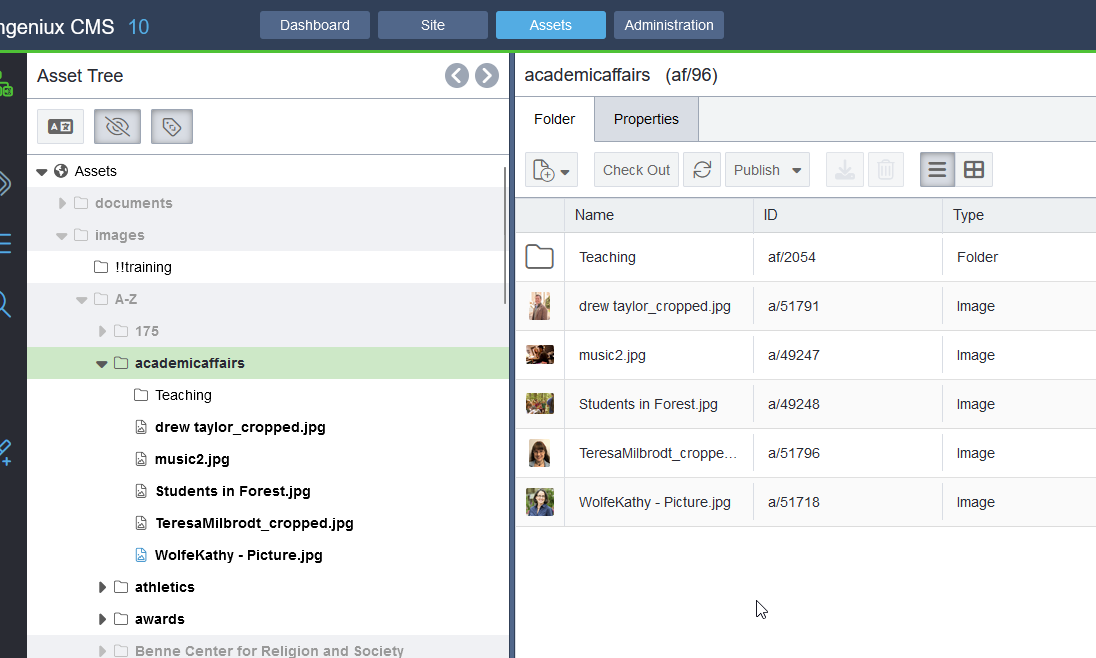

In Assets, you can upload, edit, delete, and resize both Images and Documents.
Be sure images go in the Images Directory and Documents in the Documents Directory.
Note that greyed-out areas are not accessible to you.
In the Dashboard, you can create new pages, see what pages are checked out to you, and go to and add Favorite pages. Add a Favorite Click Favorites Type xID or Name of Page Click the Page to Add it. Remove a Favorite Click Favorites Click the × next to the page or asset
Colleague UI5 does not contain any new features, but rather an entirely new look and feel to it. UI5 does not use Microsoft Silverlight, so it can be used in Google Chrome or Mozilla Firefox without problem. Direct link to Colleague UI5 Important Things to Note: All keyboard shortcuts are the same as in UI4….
On occasion students, staff and faculty may have issues using or getting to commonly used webpages that aren’t run by Roanoke like My Spanish Lab, Mastering Chemistry or even none school work related sites like Netflix and other video players. This sort of thing usually happens for a few common and easily fixed reasons. The…
Sending Files Roanoke College hosts a secure file transfer service that allows confidential information to be shared between two parties, typically to or from the College. Create a URL Go to https://files.roanoke.edu/ in your web browser. You will see a page with the following fields: Enter your email address in the required field. This can…
In the Site tab, you can see and edit pages. Pages you can’t edit are greyed out; pages you can edit are not greyed out. Click the Site Hierarchy Icon (Top Left) to see the “Site Tree.” Note: Click Ingeniux CMS – Site – Home – Inside to see all the pages in Inside Roanoke….
In addition to Index and Form editing. Ingeniux offers In-Context Editing. Where you can edit your page while seeing what it looks like on the live website. Ensure the page is check out to you. To start, click the In-Context button from Edit Mode Find the content you want to edit. Edit the content. Finish,…