Ingeniux – Event Listing
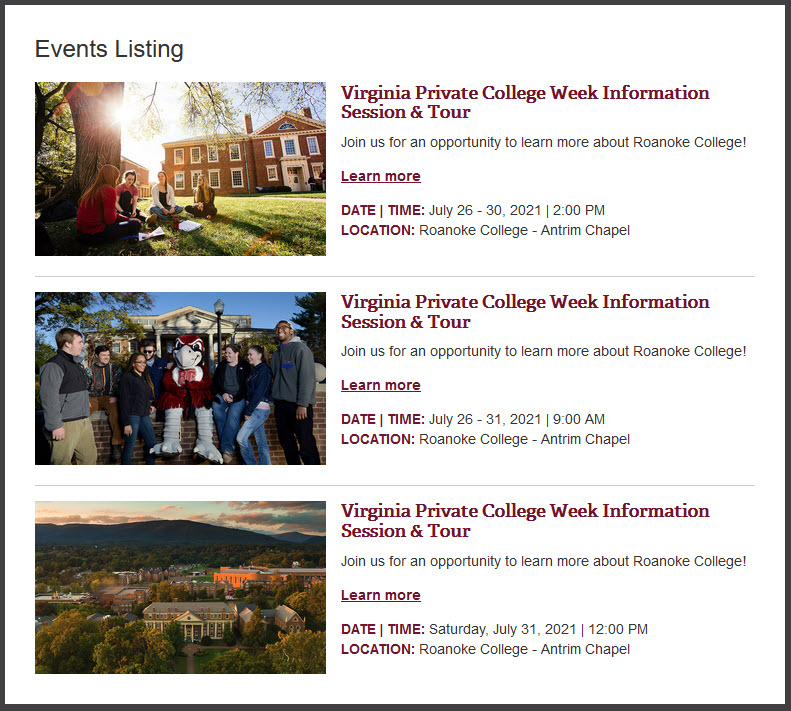
- The event listing module displays a number of news stories.
- Which category stories will be shown (or all).
- How many events will be shown

Add a component is as simple and dragging and dropping it on the page. You can choose any of the components listed in the training. Note: Some older pages might not have the drag target set, in this case, create one: Select the Page Builder section Add a Content Section Click the Checkmark Drag a…
You can link to Phone Numbers Select your text Click the Insert/Edit link button Select “External” and type: tel: plus the phone number.
Ensure you have Uploaded Your Document into Ingeniux Insert the link – Highlight the text you wish to link. Then click the Insert/edit Link button. Select Asset at the top Click on the browse button beside Asset to select the document. Find the asset and click Insert
Ingeniux Components are re-usable blocks of structured content. They can contain multiple pieces of information like (Headline, Subhead, Image, and Content). It is important to understand that Components can be on a page or shared across multiple pages. For this guide, we will be using only embedded components (on a page). Components can also have…
The content module can support any type of formatted rich text. The module will include a WYSIWYG content editor. In addition to a standard WYSIWYG content block, the module will support a number of additional options: Title Subtitle Two different design treatments -Yellow Headline and Grey Header Photo above the headline. Only a photo
Buttons (Outline Color) Make your links stand out. Use a button. When inserting a link select the Class Option and choose one of the following Maroon Button, Red Button, Yellow Button, Blue Button, Green Button, Purple Button, Orange Button