Sync Your Outlook Calendar
Integrating Your Calendar
The availability you set up within Navigate360 dictates students’ ability to schedule appointments with you. You have the added option to integrate your calendar with the Navigate360 platform to pull in Free/Busy times from your personal calendar and push appointments scheduled in Navigate360 to your personal calendar.
Select the calendar icon in the left navigation bar. Once on the My Calendar page, select the Settings and Sync button.

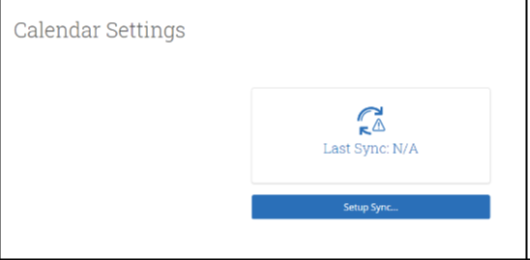
On the Calendar Settings page, select Setup Sync…
If you see the following screen, click the button that says Use Office365 (Latest Version) at the top of the list of options, as in figure 3.
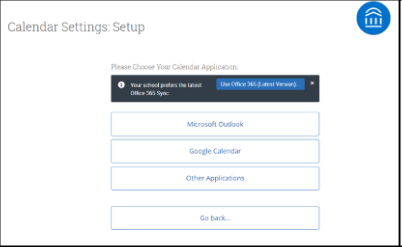
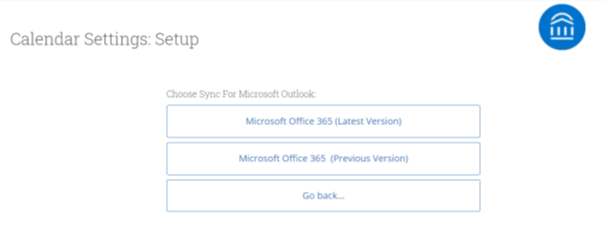
If you click Microsoft Outlook instead of the Use Office365 (Latest Version) button, you choose your Microsoft Outlook sync. Select Microsoft Office 365 (Latest Version) from the options.
Regardless of which method you choose, the Microsoft login and authorization page opens. The page tells you to pick an account. Choose your professional account.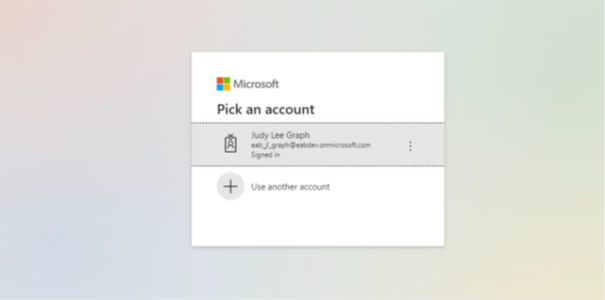
If you log in successfully, you see a page requesting permissions.
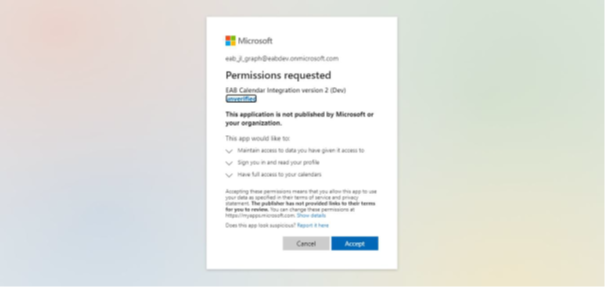
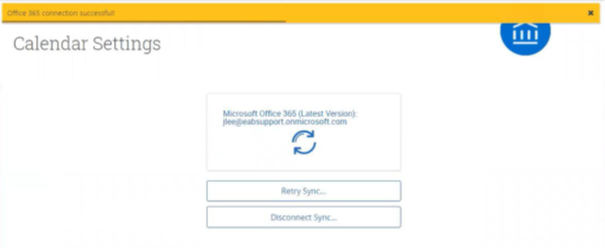
Select Accept. The page redirects to the Navigate360 Calendar Settings page, with a success message and information about the sync on display.