Insert a Link to an Email Address
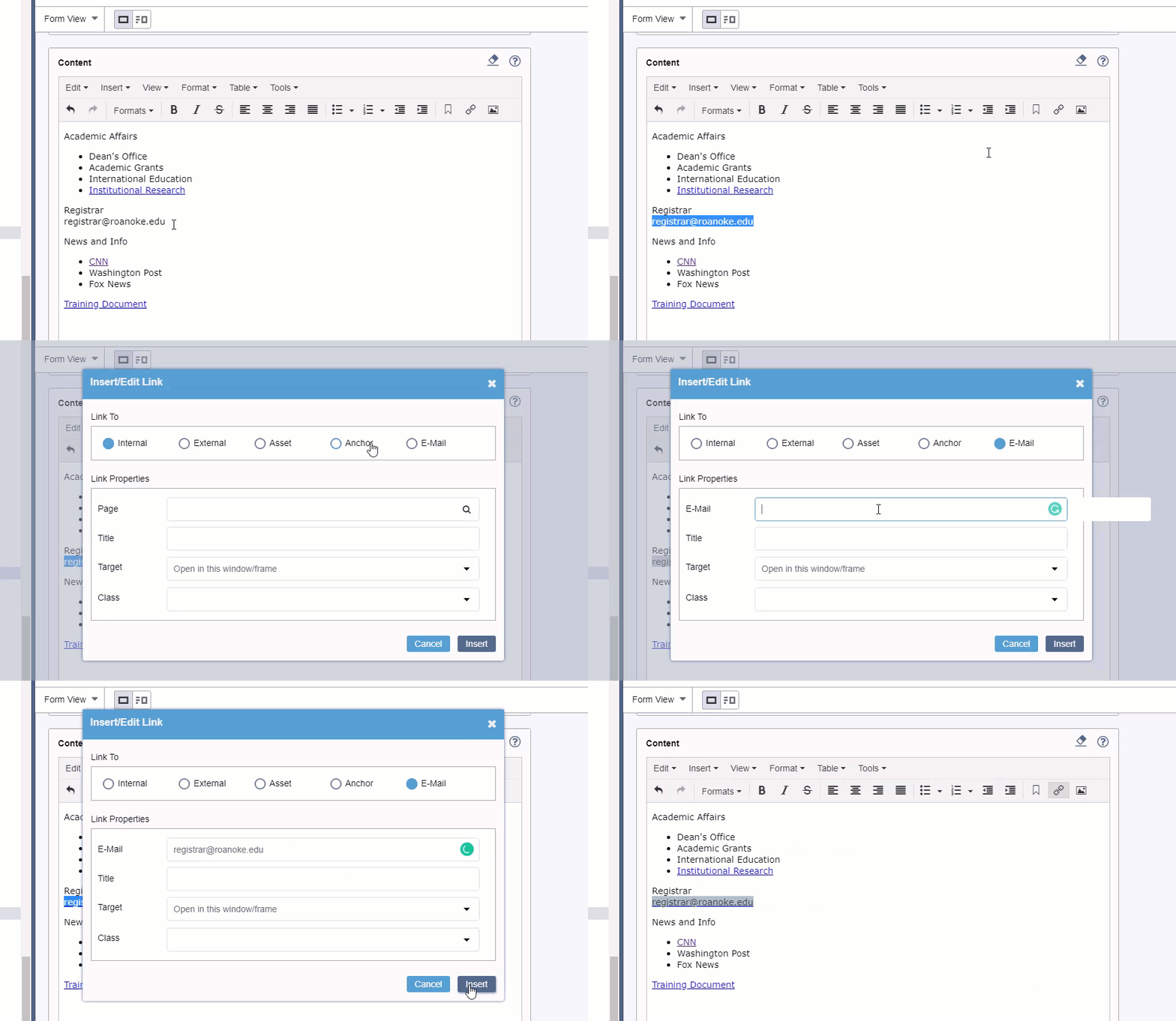
Highlight the text you wish to link. Then right-click and select Insert Link.
- Select Email at the top
- Under E-Mail, type in the full email address and then click Insert.

Insert a Link to another page in Ingeniux Highlight the text you wish to link. Then right-click and select Insert Link or Select the Link icon in the editor. Select Internal at the top Under Page, type in the page name and select from the list
Ingeniux Components are re-usable blocks of structured content. They can contain multiple pieces of information like (Headline, Subhead, Image, and Content). It is important to understand that Components can be on a page or shared across multiple pages. For this guide, we will be using only embedded components (on a page). Components can also have…
How to Publish. From any page or asset, click “Publish” Then select “Site” In the window that pops up, click “Production” as the target Click the “Incremental” Button.
An accordion module will show / hide content within any number of sections. The header for each section is plain text, and the body may be full HTML content with WYSIWYG support.
Previously we have edited pages with Form View. For Components you will need to access Design view to add, delete and reorder them. Check the page out and click on Design View This will load a visual view of your page, similar to Preview. After your main on-page content, you will see the Page Builder…
From the “Site” Tab Use the Tree Icon to Open the Site Tree Navigate to where you want the new page. For Example – Ingeniux CMS ➔ Site ➔ Home ➔ Inside ➔ Academic Grants ➔ External Funding Right Click and Select “New Page” Under “Name” type the name of your new page Leave “Select…