Ingeniux – Accordion Content
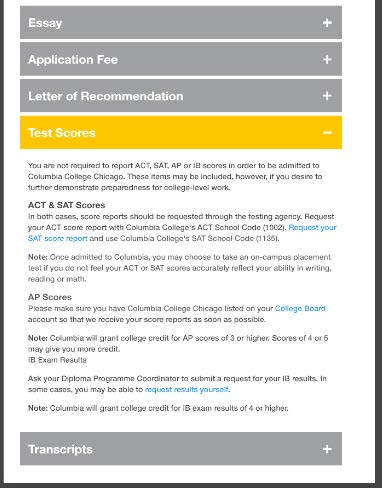
An accordion module will show / hide content within any number of sections.
The header for each section is plain text, and the body may be full HTML content with WYSIWYG support.

From the “Site” Tab Use the Tree Icon to Open the Site Tree Navigate to where you want the new page. For Example – Ingeniux CMS ➔ Site ➔ Home ➔ Inside ➔ Academic Grants ➔ External Funding Right Click and Select “New Page” Under “Name” type the name of your new page Leave “Select…
Communicating with Students Navigate360 provides both email and text messaging for faculty and staff to communicate with students, either individually or en masse. Communicating with students through the platform creates records of those communication which can be accessible by other staff or faculty on your campus. In addition, it allows for a quick and easy…
How to Publish. From any page or asset, click “Publish” Then select “Site” In the window that pops up, click “Production” as the target Click the “Incremental” Button.
Accessibility Tips It all starts with content. The information written in your website should be as simple and as plain as possible for easy comprehension. Avoid writing long sentences and paragraphs. The visually challenged users depend on different tools like screen readers or magnification features to help read your content. Use proper content formatting. Use headers to…
New to Teams? We have written several guides to help you get started. MSTeams Quick Start Guide Teams – User Guide – A comprehensive 159 page user guide that covers the following topics: Chats Group Chats Notifications Teams Channels Calls Files Loop Components Meetings Recording Options Webinars Town Halls Troubleshooting You can Book Training for…
How to find Your Computer Name: PC: On the Taskbar at the Bottom of your Desktop, type into the search bar the word “About” The Start Menu will display relevant apps and services above Click on About your PC Your DEVICE NAME will be displayed in the center menu: