Ingeniux – Maroon Text
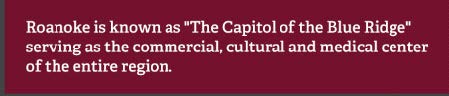
The Maroon Text module is a WYSIWYG content block with a maroon background.
The WYSIWYG editor will support adding links and changing font size.

An accordion module will show / hide content within any number of sections. The header for each section is plain text, and the body may be full HTML content with WYSIWYG support.
Accessibility Tips It all starts with content. The information written in your website should be as simple and as plain as possible for easy comprehension. Avoid writing long sentences and paragraphs. The visually challenged users depend on different tools like screen readers or magnification features to help read your content. Use proper content formatting. Use headers to…
The quote module displays a line of text with a designed appearance including large quote marks. The module supports the capability for a header, the quote, and attribution. The header and attribution fields are optional.
Pages and Assets won’t show on the website until they are marked for publish. Pages “marked for publish” show up bold in the site tree. To mark a page, either Right Click on the Item and choose “Mark / Unmark For Publish”, then check the box. And finally, click OK. OR Select the item and…
Anchor links will take you to a specific part of a document. It is a two-step process, first create the anchor, then create a link to that anchor. Create the Anchor Hightlight the word or words you want to be the Anchor Right click and select Anchor. Type the text you want and click OK….
What is a Content Management System (CMS)? Roanoke College uses Ingeniux CMS to manage all web content. All pages that start with https://www.roanoke.edu are in the CMS You just focus on the content of your site, and the CMS does all the design for you. You don’t need to be an expert in Web Design,…