Similar Posts
Insert a Link to Another Page in Ingeniux (Internal Link)
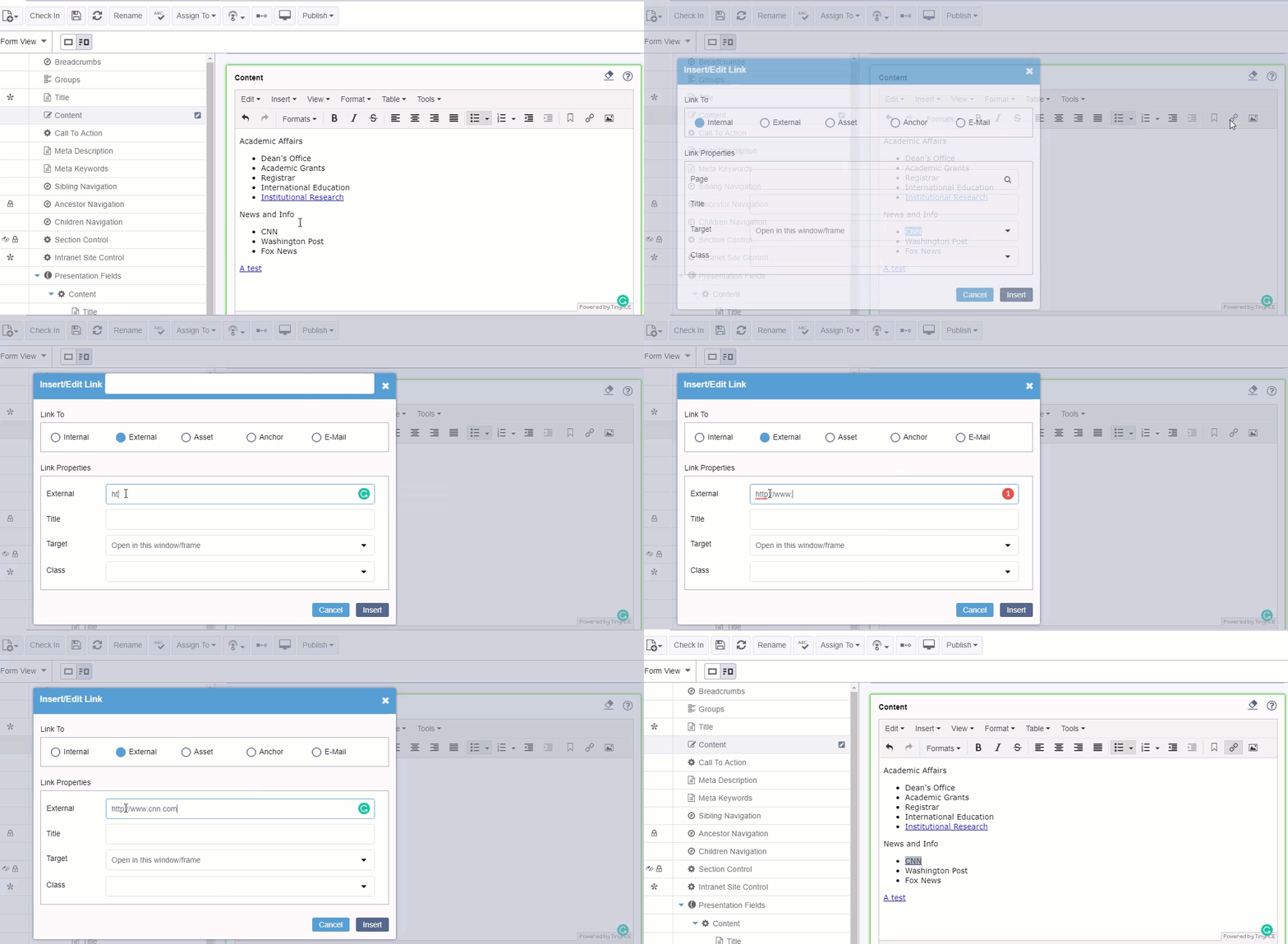
ByhelpdeskInsert a Link to another page in Ingeniux Highlight the text you wish to link. Then right-click and select Insert Link or Select the Link icon in the editor. Select Internal at the top Under Page, type in the page name and select from the list
Log into Ingeniux
ByhelpdeskOpen Google Chrome or Mozilla Firefox and type: https://webedit.roanoke.edu use the Default login Option “Roanoke Azure” and click the Login Button. If you already logged in, you will be signed in right away. Otherwise follow the steps to login with you Roanoke email and Password.
Ingeniux – Add a Component
ByhelpdeskAdd a component is as simple and dragging and dropping it on the page. You can choose any of the components listed in the training. Note: Some older pages might not have the drag target set, in this case, create one: Select the Page Builder section Add a Content Section Click the Checkmark Drag a…
Ingeniux – What are components?
ByhelpdeskIngeniux Components are re-usable blocks of structured content. They can contain multiple pieces of information like (Headline, Subhead, Image, and Content). It is important to understand that Components can be on a page or shared across multiple pages. For this guide, we will be using only embedded components (on a page). Components can also have…
Insert a Link to a Phone Number
ByhelpdeskYou can link to Phone Numbers Select your text Click the Insert/Edit link button Select “External” and type: tel: plus the phone number.
Insert a Link to a Document
ByhelpdeskEnsure you have Uploaded Your Document into Ingeniux Insert the link – Highlight the text you wish to link. Then click the Insert/edit Link button. Select Asset at the top Click on the browse button beside Asset to select the document. Find the asset and click Insert