
How to Make Cisco Calls in Teams (Windows)
- Make Sure You Have Access
You need:
- A work account with calling enabled
- Cisco integration set up by IT (Webex Calling)
This usually appears inside:
- Microsoft Teams
- With Cisco integration like Webex Calling
If you don’t see a dial pad, your admin may not have enabled calling yet.
- Open the Calling Interface in Teams
- Open Microsoft Teams
- Look at the left sidebar
- Click “Calls”
If you don’t see it:
- Click “…” (Get more apps)
- Search for Cisco Call or Cisco-related app (like Webex)
- Use the Dial Pad
Inside the Calls section:
- Find the Dial Pad

- Enter:
- Internal extension (e.g., 2345)
- Full number (e.g., +1 540-xxx-xxxx)
- By name (e.g. Clark Kent)
- Click the Call button
- If Cisco Webex Is Embedded
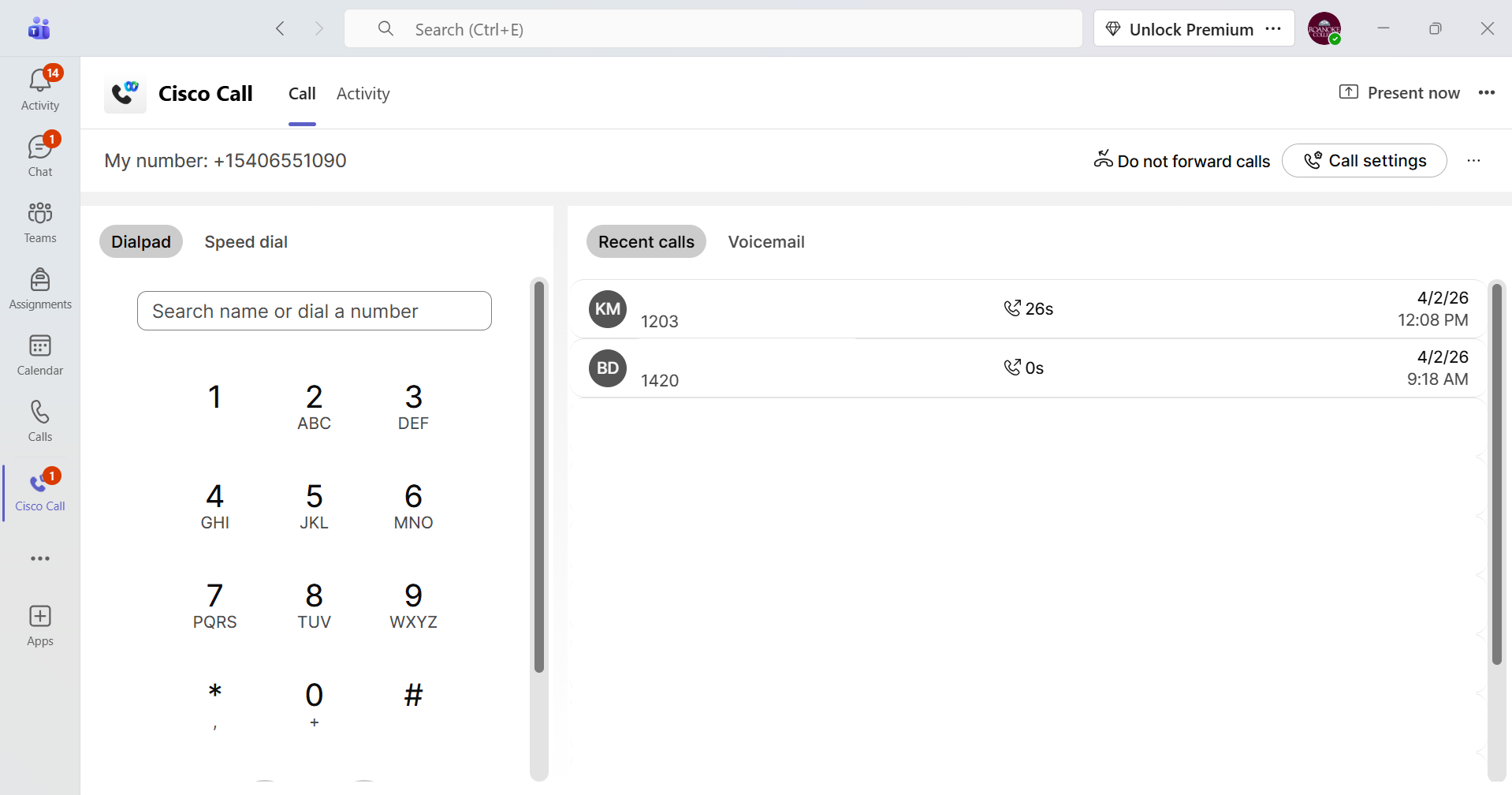
Some setups use Cisco directly inside Teams via an app:
- Look for Webex Call or Cisco Call
- You may see:
- “Make a Webex Call”
- “Call via Cisco”