
This is the home for your new Microsoft Teams soft phone

1. To make a call, you can simply type a user’s name just like you would for an email
Alternatively, you can dial their full number or extension
(You can use your mouse to select the numbers or type with the number keys)
2. Once you choose a number to dial, press enter or the dial icon: 
Upon doing so, you will see a new box open up on your screen.
This is the active call window:
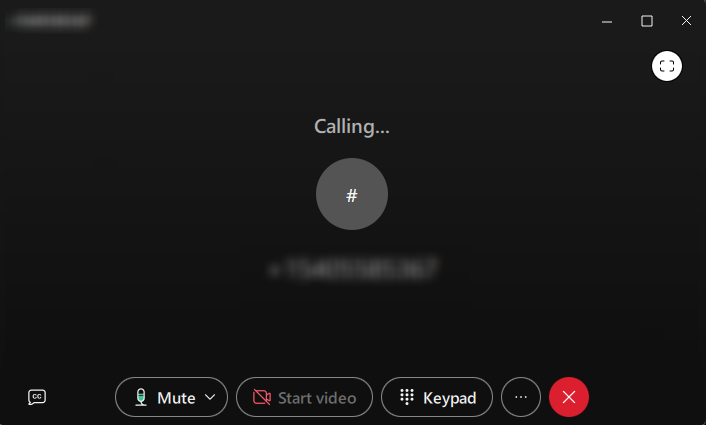
3. If you need to perform additional in-call actions, choose the ellipsis (…)
This will present you a few options, such as the ability to transfer calls.
If the Transfer Call option is chosen, you will see the following menu appear:

(NOTE: Once this menu appears, the user on the call is placed on hold)
4. Lastly, this is how an incoming call will appear

A separate window appears and your chosen ringtone will begin to play
We will cover how to set a ringtone in a separate article.
For now, this should get you started with calling!