Insert a Link to an Email Address
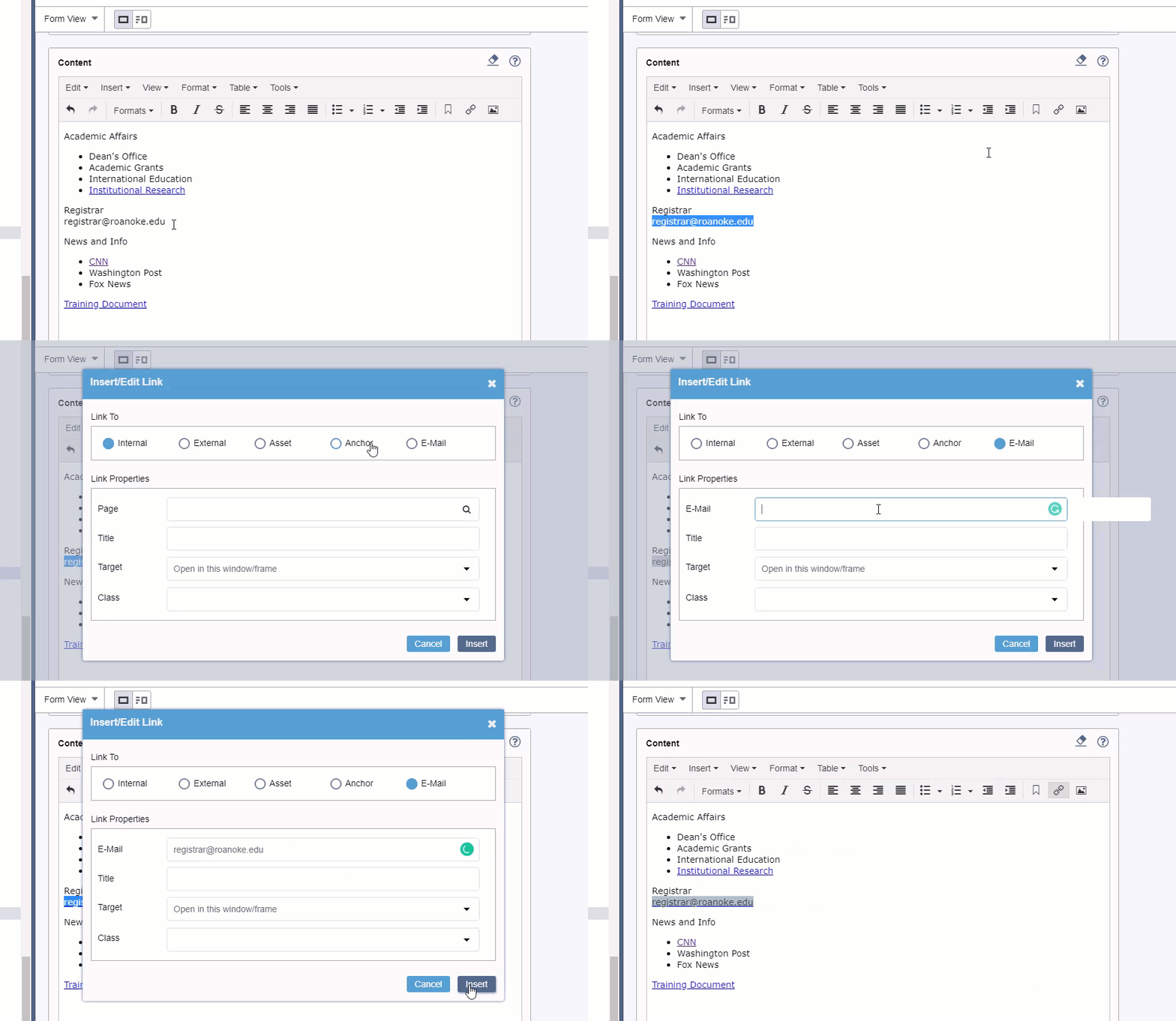
Highlight the text you wish to link. Then right-click and select Insert Link.
- Select Email at the top
- Under E-Mail, type in the full email address and then click Insert.

From the “Site” Tab Use the Tree Icon to Open the Site Tree Navigate to where you want the new page. For Example – Ingeniux CMS ➔ Site ➔ Home ➔ Inside ➔ Academic Grants ➔ External Funding Right Click and Select “New Page” Under “Name” type the name of your new page Leave “Select…
The event listing module displays a number of news stories. Which category stories will be shown (or all). How many events will be shown
An accordion module will show / hide content within any number of sections. The header for each section is plain text, and the body may be full HTML content with WYSIWYG support.
Important: Images are now Assets and must be both Checked In and Marked for Publish before they will appear on your page. Upload the picture – Go to Assets, then Click the Upload icon. Browse to the location where the picture is saved and select it. Then, click Upload. Double click the Images folder Find the…
Ensure you have Uploaded Your Document into Ingeniux Insert the link – Highlight the text you wish to link. Then click the Insert/edit Link button. Select Asset at the top Click on the browse button beside Asset to select the document. Find the asset and click Insert
The Maroon Text module is a WYSIWYG content block with a maroon background. The WYSIWYG editor will support adding links and changing font size.