
Creating an Appointment Campaign
Building your Campaign
Navigating to Campaigns: While on the staff home screen, select “Appointment Campaigns” from the left-hand
side Quick Links section. This will take you to the Campaigns tab. From there, select Appointment Campaign from
the right-hand side, under Actions.
Define Campaign:
o Name your campaign (Students will not see the name of the campaign)
o Select “Advising” as the Care Unit (or the applicable Care Unit for your campaign)
o Location- Choose your location. NOTE: Ensure that for the campaign availability you have created under
“My Availability” you have selected that you will be available in the same location (Advisor’s office).
o Under “Service”, choose the services for which you are available. NOTE: This must match the availability
you have set up on your staff home page, under “My Availability”.
o Begin Date and End Date- choose the date range for which you want the campaign to run. If a student
tries to schedule outside of that time period, they will receive a message stating that the campaign has
expired. NOTE: This must match the availability you have set up on your staff home page, under “My
Availability”.
o Appointment Limit- how many appointments can the student schedule for the campaign? (default is 1)
o Appointment Length- how long do you want the appointment to last?
o Select 1 slot per time (select more if you’d like more than 1 student to select the same time slot)
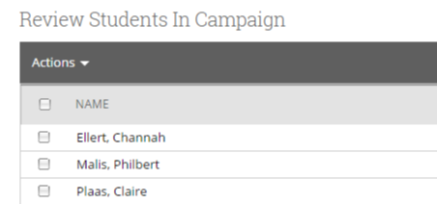
Adding Students: Use the advanced search feature to search for students you would like to participate in the
campaign. Or choose one of your saved searches by clicking the drop-down arrow beside “Saved Searches”.
Adding Staff: If you have correctly set up your availability for Campaigns then you should see your name on the
next page under “Add Advisors to Campaign”. If applicable, select other advisors to join your campaign.
Compose Your Message:
o Create a Subject Line for your email
o In the next box, edit the text for the email. Default is “Please schedule your advising appointment”.
NOTE: Always be sure to keep the Schedule Link in your email body, if that is removed students will be
unable to schedule appointments.
Confirm & Send: Review the details of your campaign. When you are ready, click send to issue the email to
students on the list.
Drafting your Campaign Message
Adding Staff: If you have correctly set up your availability for Campaigns then you should see your name on the
next page under “Add Advisors to Campaign”. If applicable, select other advisors to join your campaign.
Add Welcome Message, Nudges, and Success Message:
Nudges replace the Compose a Message functionality and allows for more communication from your school to
students during an Appointment Campaign. Each nudge is an email or SMS message sent to your campaign list.
o Click Add Welcome Message to create your first nudge. You have a choice to create either an Email
nudge or an SMS nudge. You must create at least one nudge per campaign. The nudge can be either an
email or an SMS. Only one nudge type (email or SMS) can be sent per day. There are no limits to the
amount of nudges you choose to send during the campaign.
o Enter a subject line and customize the message.
o Choose a Send Date. This is the date the nudge is to be sent. Nudges are sent in the morning of the date
chosen when you create the nudge.
o After creating a nudge, click Save Nudge to add it to your campaign.
o You can also create a Success Message on the Nudges step of an Appointment Campaign. This is an
email or SMS message sent the day after the recipient schedules all appointments for the campaign. It is
for communication purposes only. Click Add Success Message to start creating a Success Message.
o The Add Success Message page is like the Add Nudge page; however, there is no Send Date
because the Success Message only sends after the student schedules an appointment.
Verify & Start: Review your campaign details, nudges, invitees, and advisors on this page. Click Start Campaign
when you are ready to email the invites to the selected students.